4.7. Settings Profiles
Settings profiles allow the Model 346 to capture the present instrument configuration and save it for later use or transfer to another instrument. Profiles are useful when the instrument must be returned to a known setup for recurring experiments or different system configurations.
Each profile stores the present instrumentation settings along with all of the defined user curves. Profiles are saved locally on the instrument and can also be exported to external storage for backup or transfer.
To access profiles from the front panel, tap Settings on the navigation panel, then tap Settings profiles under the Instrumentation settings section.
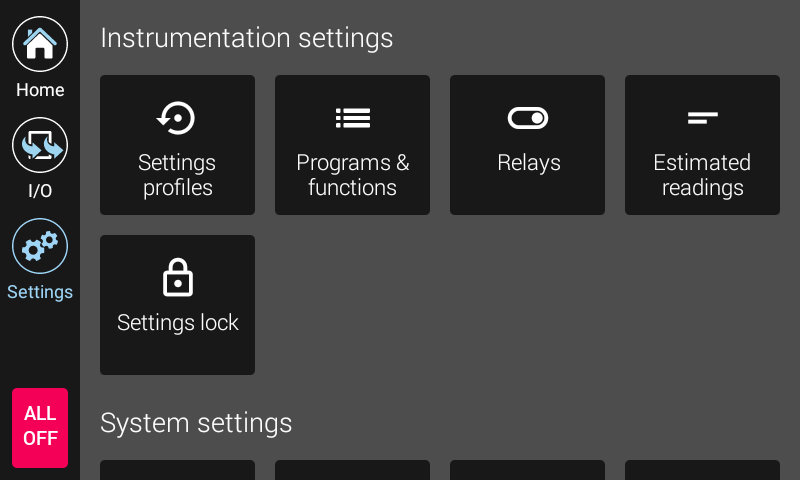
Figure 4.13 Settings tab view
Screen overview
The Settings profiles page lists all available profiles. Local profiles and external-drive profiles are shown together in one list, with external profiles appearing first.
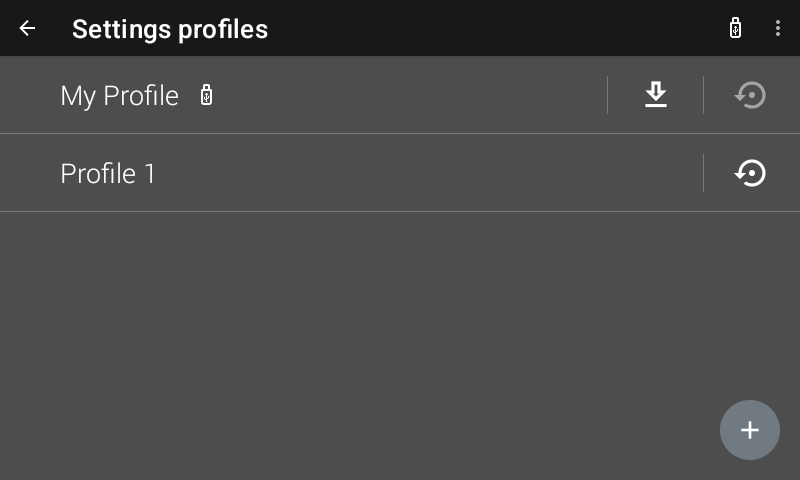
Figure 4.14 Settings profiles page
From the profiles page:
Tap the + (add) button to create a new profile from the instrument’s present settings.
Tap a profile item to open profile details.
Long-press a local profile item to delete that profile.
Open the three-dot overflow menu for:
Delete all to remove all locally saved profiles at once.
Import all to import all profiles from the attached external storage.
Export all to export all locally saved profiles to the attached external storage.
Creating and managing profiles
Tap the + (add) button to save the present instrument configuration as a new profile. Each profile name must be unique.
Note
Any outputs that are enabled at the time of profile creation will be saved as disabled in the profile. Meaning, the outputs will be disabled when the profile is restored.
Selecting a profile opens its details page. From this page, you can:
Review when the profile was created or last updated.
Add or edit the profile description.
Rename the profile.
Update the profile so it reflects the instrument’s present settings.
Delete the profile.
Review the option card configuration for the profile.
Updating a profile overwrites the saved settings and refreshes the saved option card configuration to match the instrument’s present hardware.
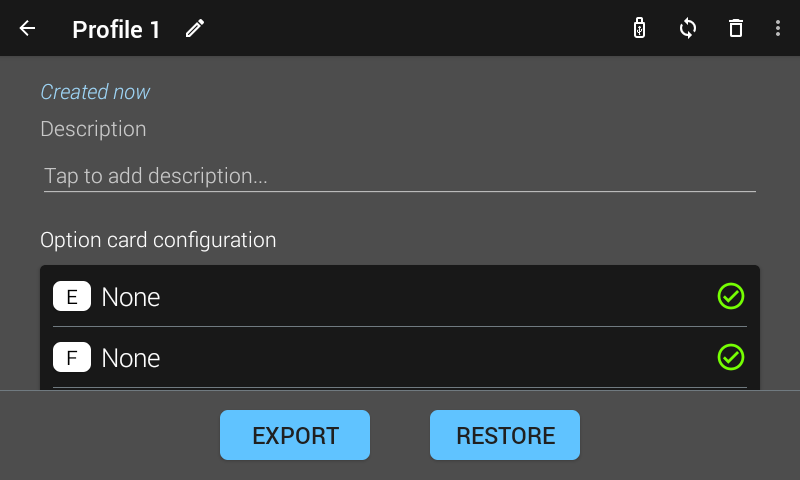
Figure 4.15 Settings profile details page
Note
Only locally saved profiles can be updated, renamed, or deleted. Profiles shown from external storage must first be imported before they can be edited locally.
Profile details and option card match indicators
The profile details page includes an option card configuration section for slots E, F, G, and H. Each row shows:
The card model saved with the profile.
The card model currently installed in the instrument.
A match indicator.
A green check indicator means the installed card type matches the saved profile for that slot. A yellow mismatch indicator means the installed card type does not match what was saved in the profile.
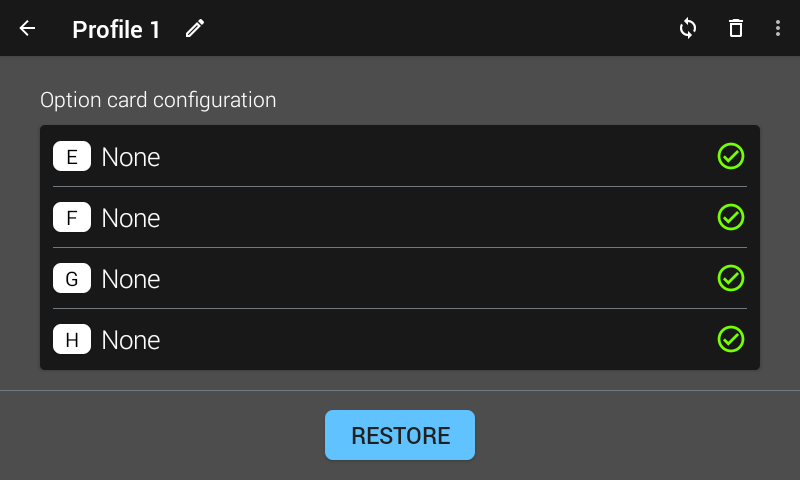
Figure 4.16 Profile details with matching option card configuration (no option cards)
When any option card mismatch exists, restore is disabled for that profile unless the profile is updated to match the present hardware setup.
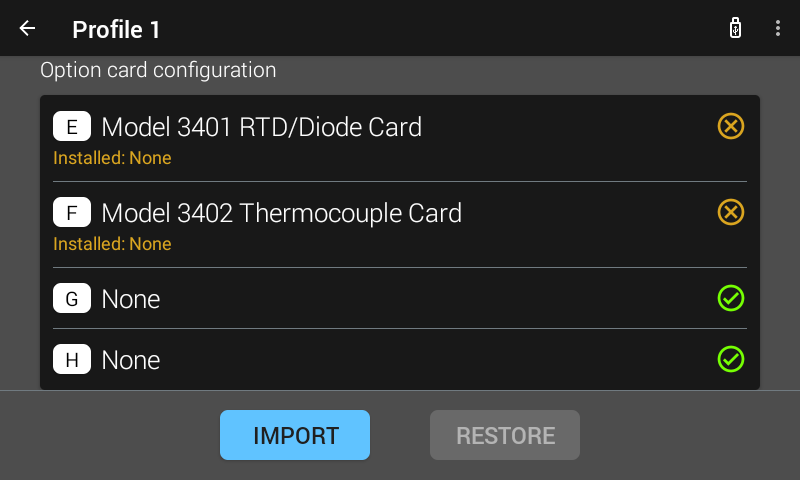
Figure 4.17 Profile details showing option card mismatch with restore unavailable
Restoring a profile
Restoring a profile applies the saved settings to the instrument and overwrites the present configuration. This is a convenient way to return the instrument to a previously validated setup.
Before a profile can be restored, the following conditions must be met:
The installed option card configuration must match the configuration saved with the profile.
All outputs must be turned off.
Note
Creating, updating, and restoring profiles are blocking operations that may take upwards of a minute to complete. While any of these operations are in progress, the instrument will not respond to remote interface commands.
External storage
When an external storage device is mounted, profiles can be exported from local storage or imported from the device. Exported profiles are copied to the external device. Imported profiles are copied into the instrument’s local profile list.
External profiles appear in the Settings profiles list and can be imported directly. This allows profile files to be used as a convenient way to share configurations between instruments with matching hardware.
Import and export can be performed at two levels:
Per-profile from the profile details screen using IMPORT or EXPORT.
Bulk operations from the three-dot overflow menu on the Settings profiles list using Import all or Export all.
Caution
While it is possible to modify a settings profile when it is on an external storage device, it is strongly discouraged. Attempting to restore a profile that has been manually modified may have unintended effects.
Remote Interface
Settings profiles can also be managed via the remote interface: